Instructions
•Products
•Reviews
•Categories
•Create a new sub-category
•Move one category to be a sub-category
•Menu
Products
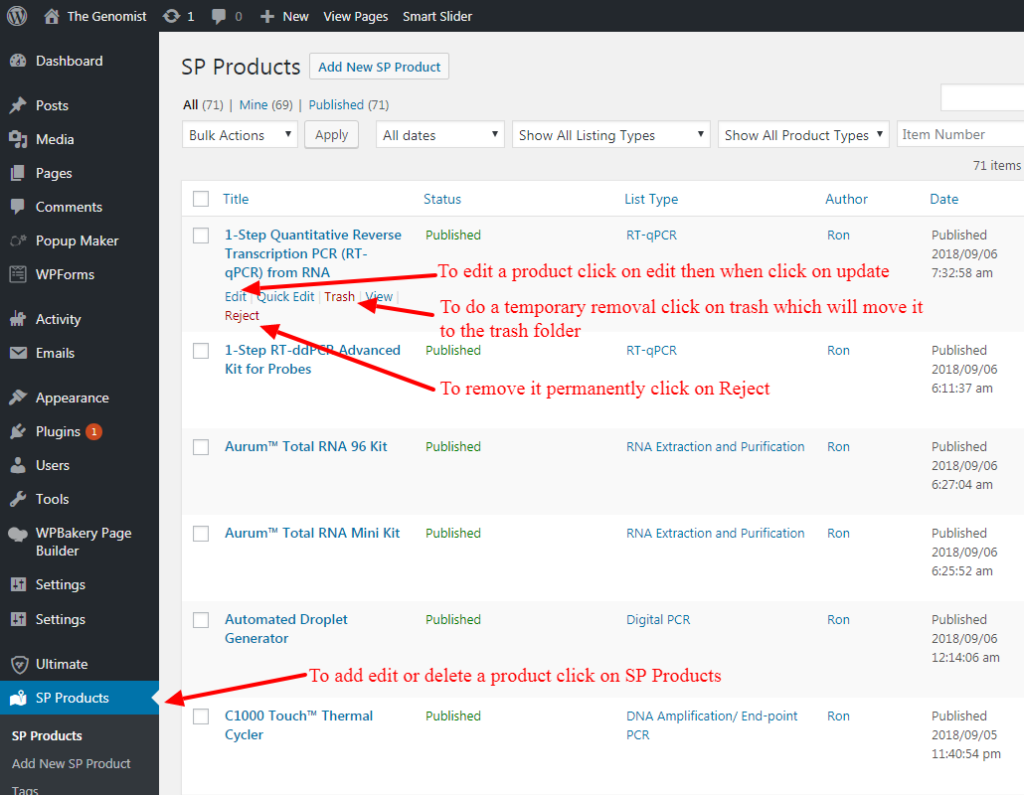
To edit, trash or reject and removed a product click on SP Products on the left menu. If you edited the product just click on the blue “Update” button on the right when done.
Reviews
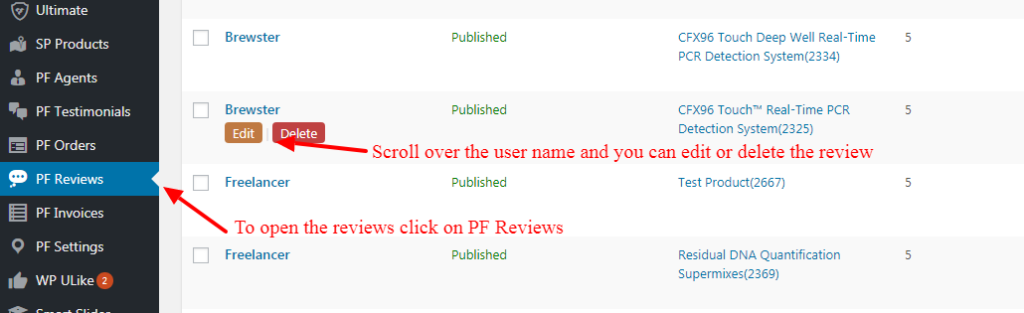
To edit or delete a review.
Categories
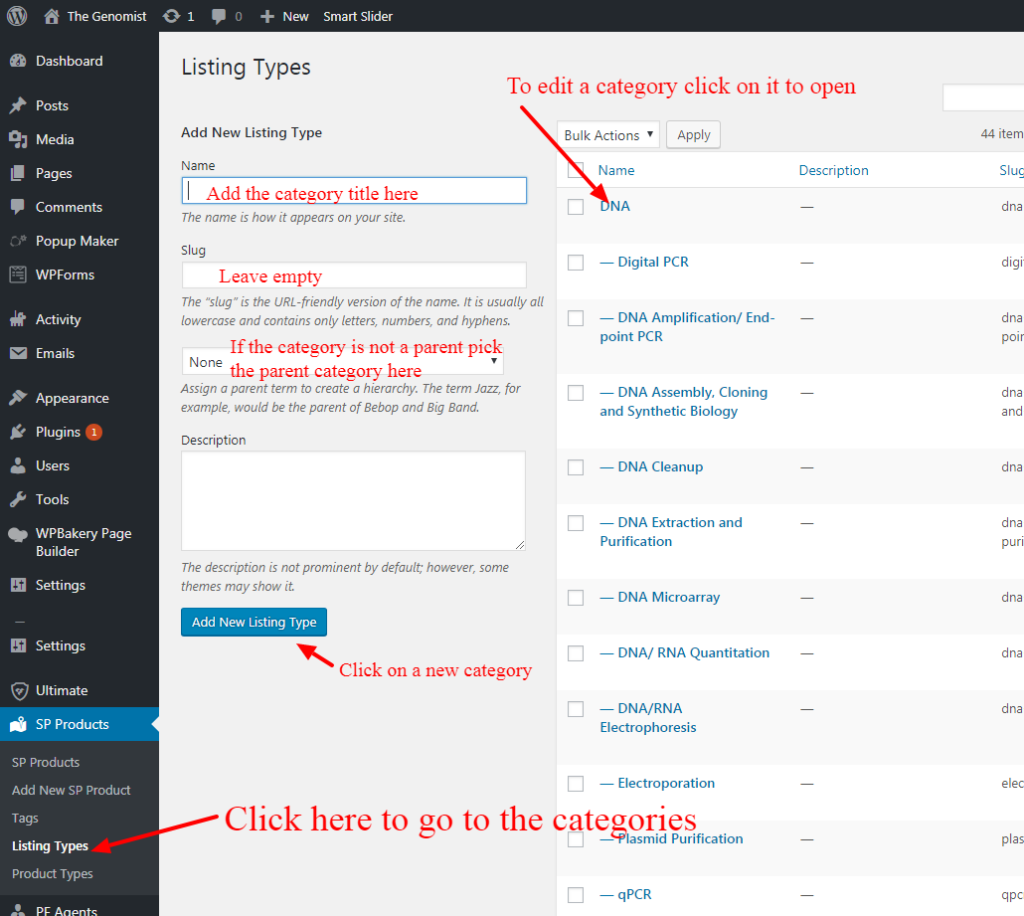
To add, edit or delete a category.
To add a category
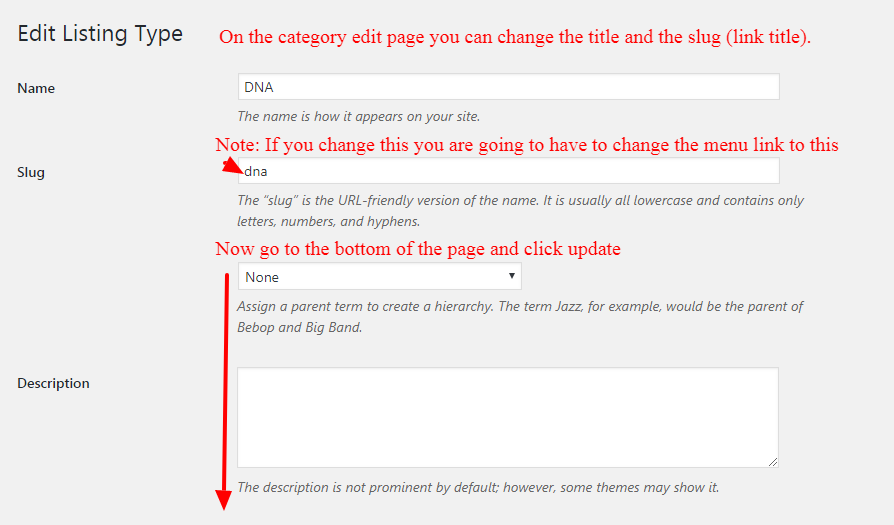
To edit a category
Create a new sub-category
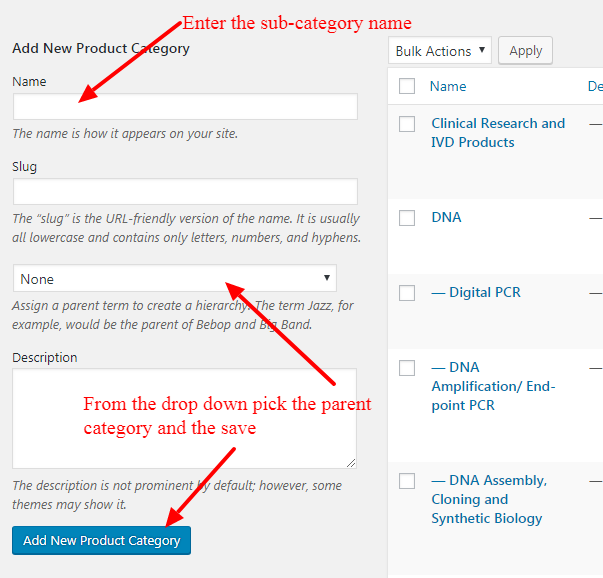
Now you need to add it to the menu per the menu instructions
Move one category to be a sub-category
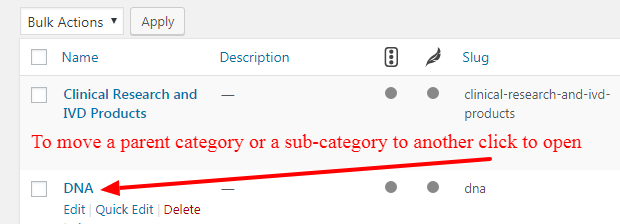
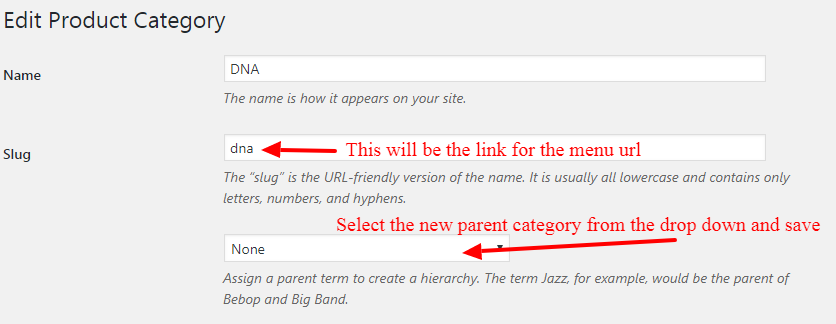
Now you need to move it menu per the menu instructions
Menu
To edit or delete a menu item.
The first thing you need to do is put the website “Under Construction”. The reason is you are going to be turning of some features and you don’t want people submitting a product.
To put the site Under Construction do the following:

Now go to the Plugins from the menu on the left and Deactive the following:
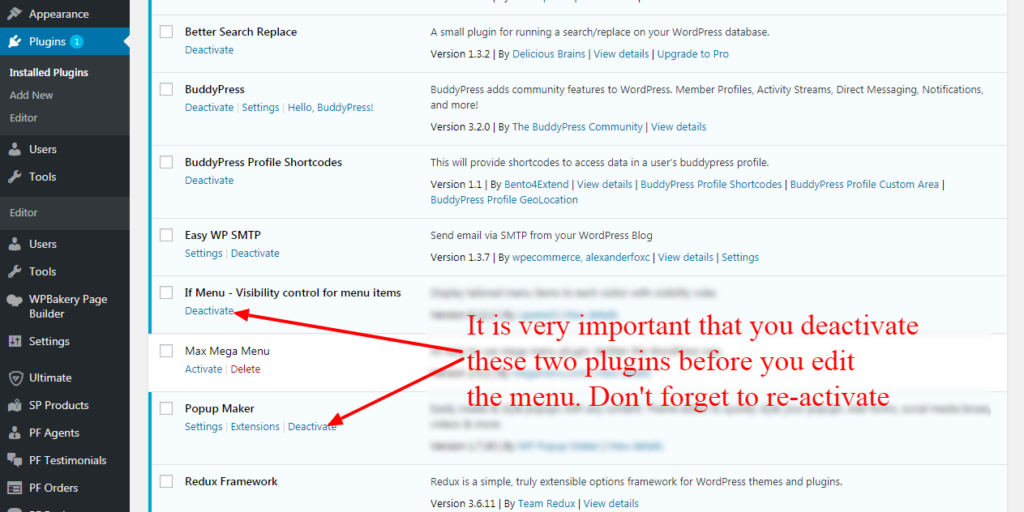
Now you can go to the Menu and make any changes and save them. Then go to the Plugins and activate them and then you can take the website out of Under Construction.
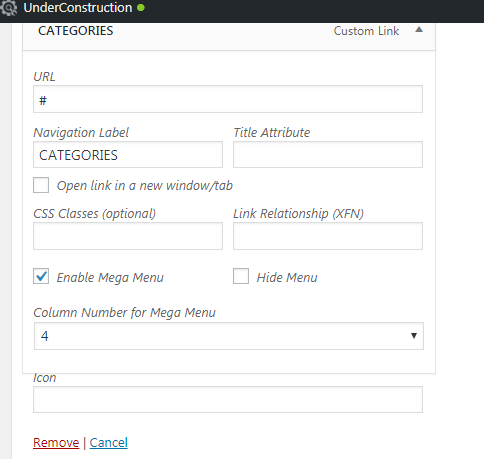
If you forget to turn off the two plugins and edit the menu you will lose the 4 column setting. To restore the menu set the category menu button to the following.
Color Codes
Button and heading colors
Orange color: #d72f00
Dark red: #8b0000
To Change the Logo
Go to PF Settings > PF Option > General Settings > Logo Settings and you will finds all of the logo options.